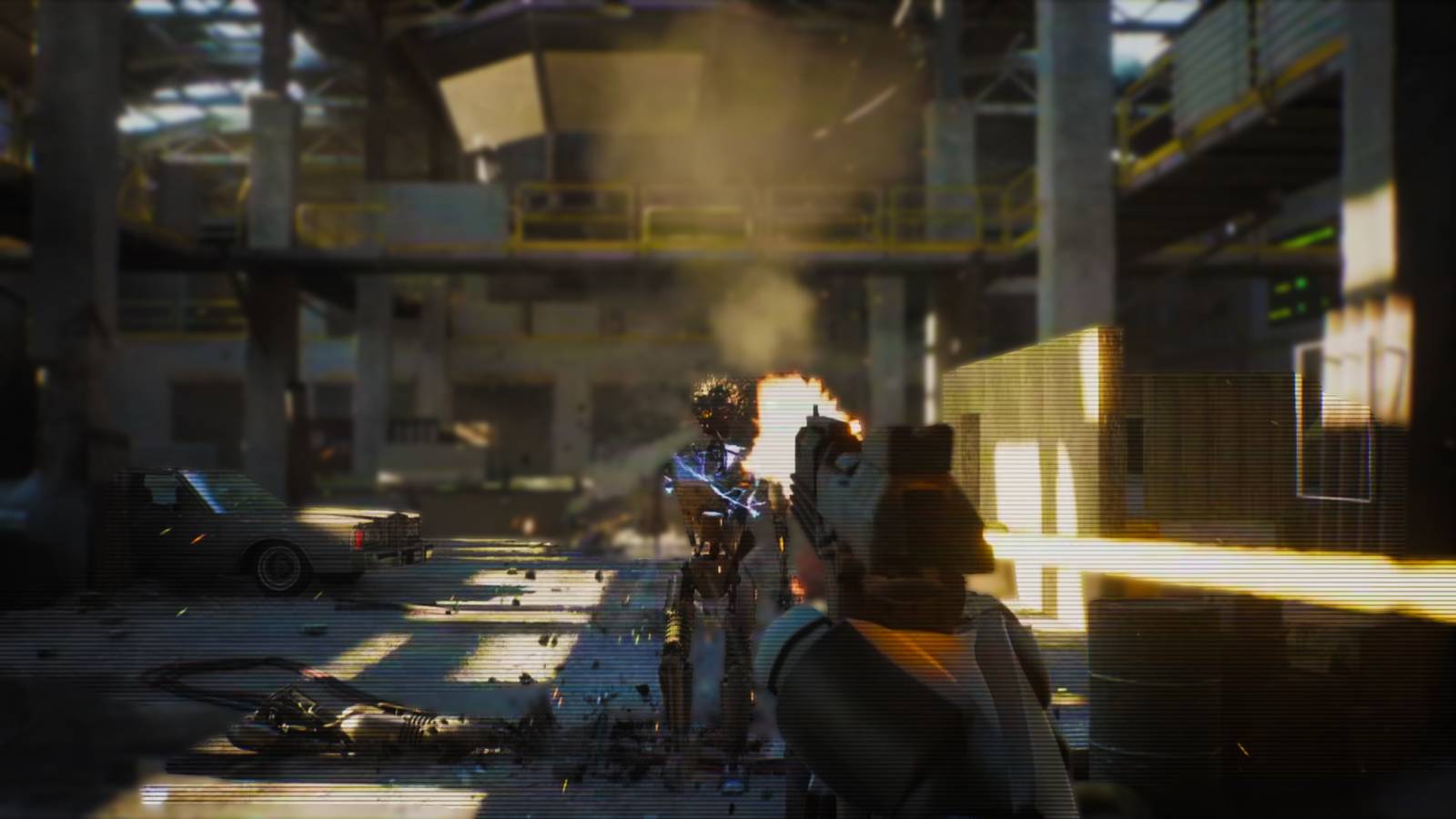


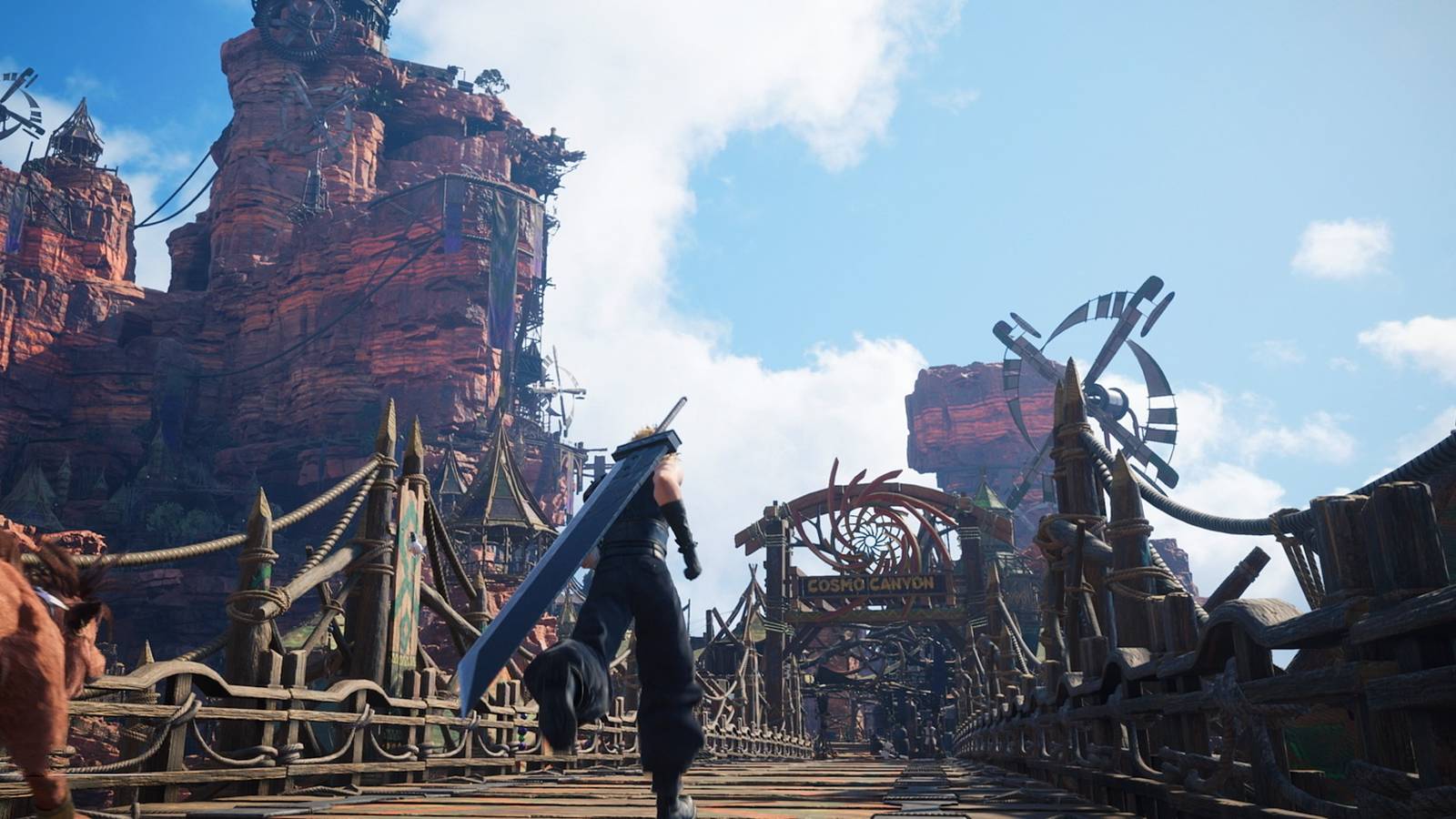


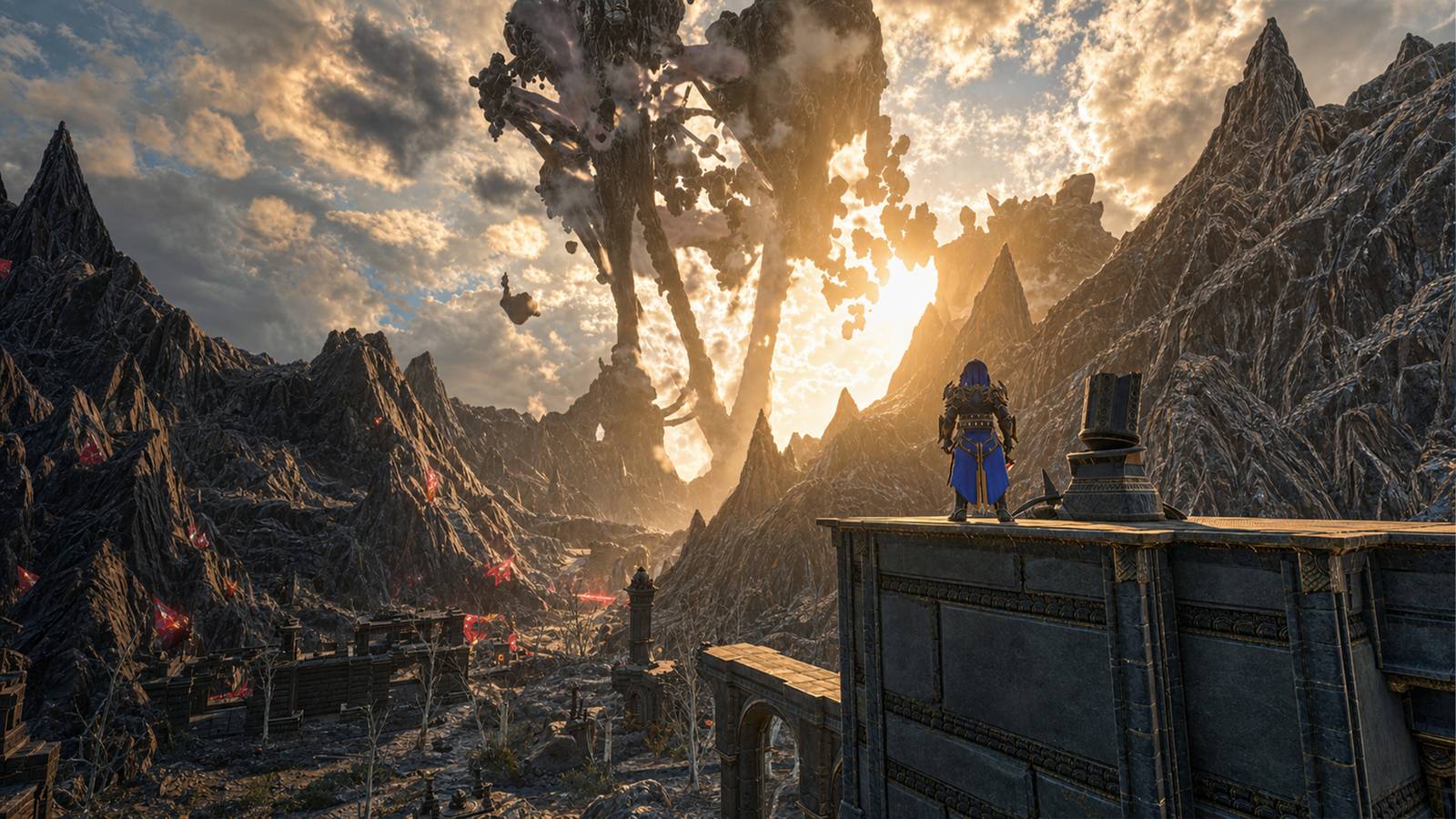




PC gaming gives you more control than any home console ever will, but that control comes with a downside: many developers still ship most titles with a range of post-processing effects switched on by default. Most of these settings were designed to make a game feel more like a movie, not to help you actually see or play better, and a few will even cost you some precious frames for very little gain.
Settings like maximum shadows and even just the gap between ultra and high are among the biggest frame killers around, but there are some even more important tweaks to make to ensure your PC gaming experience is as enjoyable as possible. While some of these settings can be useful on weaker systems and can come down to personal preference, in the majority of cases, they should be switched off the second you boot up a game and never switched back on again.
Motion Blur
Sounds As Bad As It Is


- Improves visibility of fast-moving objects.
- Mouse acceleration and camera smoothing only make things worse.
Motion blur simulates the smearing a camera or the human eye produces during fast movement, but in a game, you’re already looking at a fully rendered digital space, which means your eyes do that focusing work naturally and without help. When used in-game, it becomes harder to spot enemies approaching from the side or notice an item on the ground, and turning it off doesn’t cost you any actual graphical fidelity, so it is basically a win-win to disable right from the get-go, especially given how, in some bad use-cases, it can actually lead to motion sickness in just a short while.
There are some instances where it can work pretty well, particularly at lower frame rates in games with a lot of constant movement like racing games (via PC Gamer), but it is still an imperfect solution to background jitters and poor performance. The same logic extends to things like mouse acceleration and in-game camera smoothing, as both add a gap between your actual inputs and the on-screen movements. By disabling them, much like motion blur, you get a cleaner output of information that results in a better experience in 99% of cases.
Film Grain
What’s Even The Point?

- Muddies screen with old-school film filters.
- Cosmetic in every way, so it’s purely optional.
Film grain is an example of a graphical setting that feels like it is stuck in the wrong era, yet it continues to find its way into modern titles. The setting overlays a layer of animated noise across the screen to mimic old analog camera stock, and is a stylistic choice with zero gameplay function. Critics have singled it out repeatedly as a setting that just muddies otherwise sharp, high-resolution textures rather than adding anything useful.
Like many of these more fringe settings, some people do enjoy the way it makes games look, but I would argue that it is still an unnecessary addition that covers up the work of dozens of talented developers. Whether it’s Cyberpunk 2077, Baldur’s Gate 3, or The Last of Us Part 2, the community consensus is the same: turn it off and let the actual art direction speak for itself.
Chromatic Aberration
Unwanted Flaw Turned Actual Feature

- Turning it off sharpens edge clarity and makes UI/text easier to read.
- Adds unwanted artifacts to the picture.
Chromatic aberration is another one of those features that has me wondering why developers bother adding it in the first place. Often enabled by default, it deliberately introduces the color-fringing artifact that happens when a camera lens fails to focus correctly, which in actual photography is an unwanted flaw that developers have decided to bake in on purpose.
It doesn’t reflect anything your eyes naturally do, and reviewers have called it one of the more universally disliked post-processing effects in modern games (via PC Gamer), blurring edges and making on-screen text harder to read for no gameplay benefit. It is about as close to a no-downside toggle as PC graphics settings get and my second most hated setting after motion blur.
Depth Of Field
Keep It Slow Or Not At All

- Blurs background assets and even helps reduce GPU strain.
- Worth leaving on in slower-paced, narrative-focused games.
Depth of field is a fairly simplistic setting that acts as a kind of distanced blur affecting whatever objects may be out of your present focus. In a way, it mimics how we perceive near and far in reality. However, the severity with which it distorts the backdrop can actually be a burden on your GPU, especially on older hardware (via Nuadev).
If you are playing a fast-paced action game with a lot of effects happening all at once, it automatically makes the gameplay feel worse by making even slightly further away enemies appear more like smudges in the background. The exception is slower, story-driven games where the gameplay matters less, as some players find the cinematic focus effect adds to the atmosphere rather than getting in the way of reaction time.
Anti-Aliasing
Outclassed In Every Way

- Adds a soft, smearing effect during camera movements.
- Modern upscaling does the job better for a lower performance cost.
Anti-aliasing was once the default reconstruction filter in most modern engines because of how well it handled fine details, but that benefit always came with a major cost. The reliance on blending information from previous frames is exactly what causes the soft, occasionally smeary look that players complain about the second the camera moves, and there are even entire online communities centered around a shared hatred for this exact downside.
The general consensus among enthusiasts is that on hardware that supports it, swapping generic TAA for DLSS or XeSS produces a noticeably sharper image with less ghosting for similar or better performance. It’s not a perfect fix, since these methods are technically still temporal solutions and can introduce their own minor artifacts, but they’re a clear step up from the dated antialiasing tech and will only improve as time goes on.