



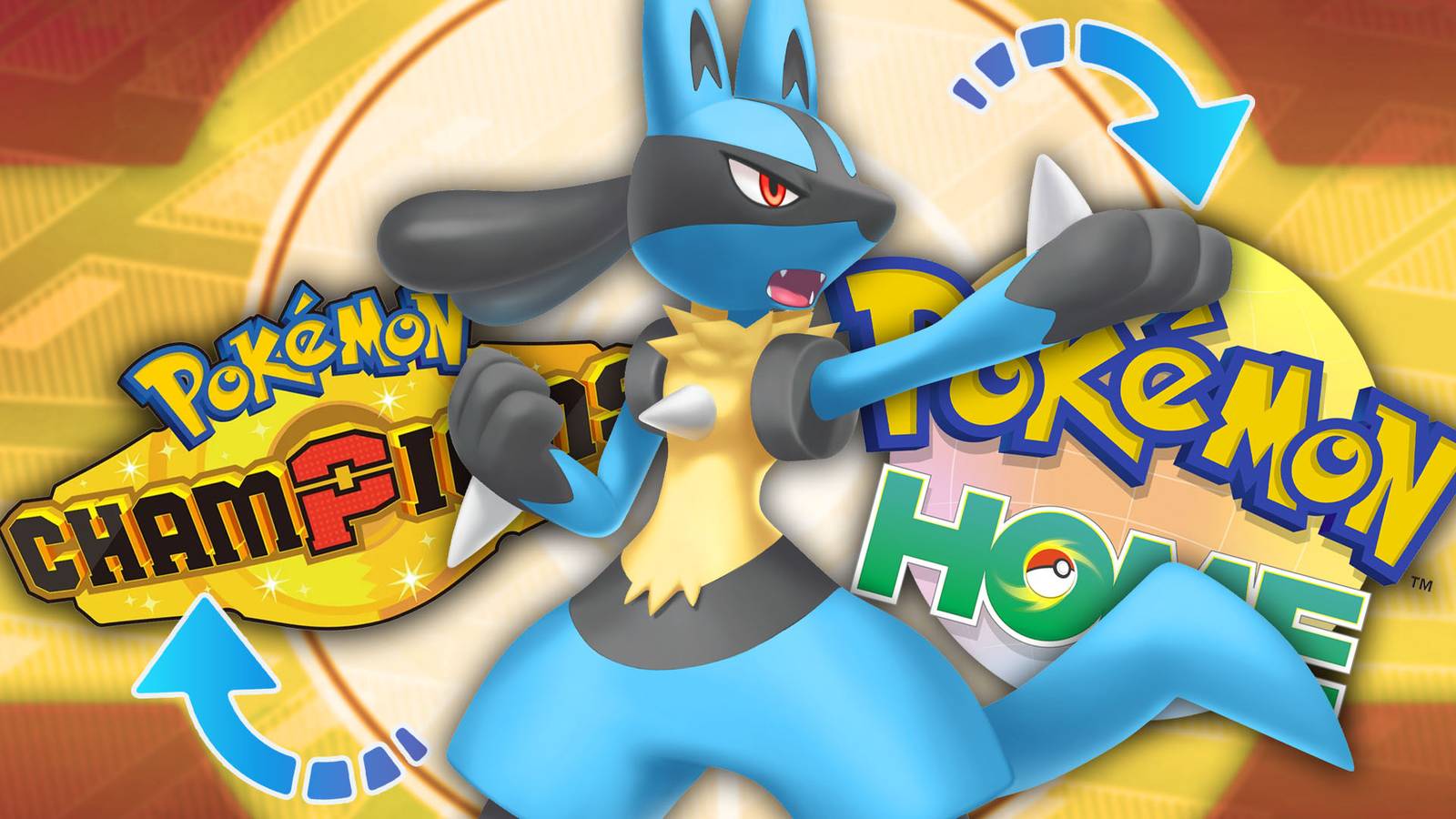
Pokemon Champions changes everything in the competitive scene. With a dedicated hub for PvP ranked battles, Trainers from all over the world will be able to compete against each other using their preferred teams and battle strategies. What’s more, players will be able to transfer their favorite Pokemon from Pokemon Home.
If you want to learn how to link both games and pick up your hard-trained Pokemon from games like Pokemon Legends Z-A, Pokemon FireRed & LeafGreen, Pokemon Scarlet & Violet, or Pokemon Sword & Shield, check out this step-by-step guide. Learn which Pokemon are currently available to be transferred in Pokemon Champions.
How to Transfer Pokemon from Pokemon Home/Other games to Pokemon Champions
To transfer Pokemon from Pokemon Home to Pokemon Champions, players need to log in to their Pokemon Home accounts, then select Transfer to Pokemon Champions (the bottom right option) in the main menu.
Players need to previously deposit Pokemon from other games like Pokemon Sword & Shield / Legends Z-A to the Pokemon Home Box. It is also required for players to complete the tutorial mission and unlock the Recruit Ranch in Pokemon Champions.
Once players have deposited the desired Pokemon in their Pokemon Home Boxes, they need to select their Pokemon manually (Pressing A on Switch / Switch 2), then once they are done selecting, press Y – ‘Send Pokemon for a Visit to Pokemon Champions.’
Transferred Pokemon will be adjusted in terms of power to fit the standards of Pokemon Champions, the stronger Pokemon (Max Level, Max EV training) will be assigned a corresponding power level in Pokemon Champions that fits their current status. Pokemon sent on a visit cannot be changed (trained) after being transferred; this is to prevent tampering (genning) and other unlawful tactics. Even if trainers make changes to that Pokemon in other games, some changes will not carry over to Pokemon Champions.
Now, go back to Pokemon Champions, and go to the Recruit Ranch menu. From there, select.’ Collect from Pokemon HOME.’ Once the menu opens, select Collect from Pokemon HOME again to confirm.
Now, the Pokemon that players have received will be permanently unlocked for their teams (unless players press ‘Send Back to Pokemon HOME. In that case, a list of the Pokemon transferred from HOME will appear, and players will be able to send these back to their Pokemon HOME Boxes using the inverse process.
Just don’t forget to get them out of the Pokemon HOME box to be able to return them to their respective titles.
- Visit Pokemon HOME again, then select Pokemon Champions (it will be marked with a ‘!’ sign)
- Follow the instructions to return your Pokemon to the Pokemon HOME Box.
Doing so will return the Pokemon to their pre-modified state, but they will preserve certain characteristics (Nature, EV Training, Move). Held Items cannot be transferred from Pokemon in Pokemon HOME to Pokemon Champions (So there’s no way to send Pokemon with Mega Stones from Legends Z-A).
How to Link Pokemon Home and Nintendo Switch/Nintendo Switch 2 Accounts to Mobile
If players have not created a Pokemon Home Account, they need to follow these steps to download the app on Nintendo Switch or Nintendo Switch 2:
- Enter Nintendo eShop with your user then browse Pokemon HOME, download the app.
- Launch Pokemon HOME from the main menu using the Nintendo Account you want to link to (select your user).
- When asked if you are using Pokemon HOME on your mobile device, select Yes if you will also use the smart device version of Pokemon HOME (recommended).
- If asked if you have linked a Nintendo Account to the mobile version, select Yes or No to complete the first-time setup.
After that, players need to select the two games they want to link. In the case of Pokemon Champions, select it and next
For the Mobile App (iOS – Android), follow these steps:
- Download Pokemon HOME on your mobile device from the Google Play Store or the App Store.
- Launch the app on your mobile device.
- Select ‘Link your account‘ to link the same Nintendo Account that you are using with Pokemon HOME on Nintendo Switch 2 or Nintendo Switch.
Players need to link an active Nintendo Account to be able to use Pokemon Home on both console and mobile at the same time. This will be essential to transfer Pokemon from Pokemon GO to Pokemon Home and to Pokemon Champions.

Pokemon Champions

- Released
-
April 8, 2026
- ESRB
-
Everyone / Mild Fantasy Violence
- Publisher(s)
-
Nintendo
- Multiplayer
-
Online Multiplayer
- Cross-Platform Play
-
Full